OSS/S3 Bucket Access Guide #
AWS CLI & S3 Browser — iVolve Object Storage (oss.ivolve.io)
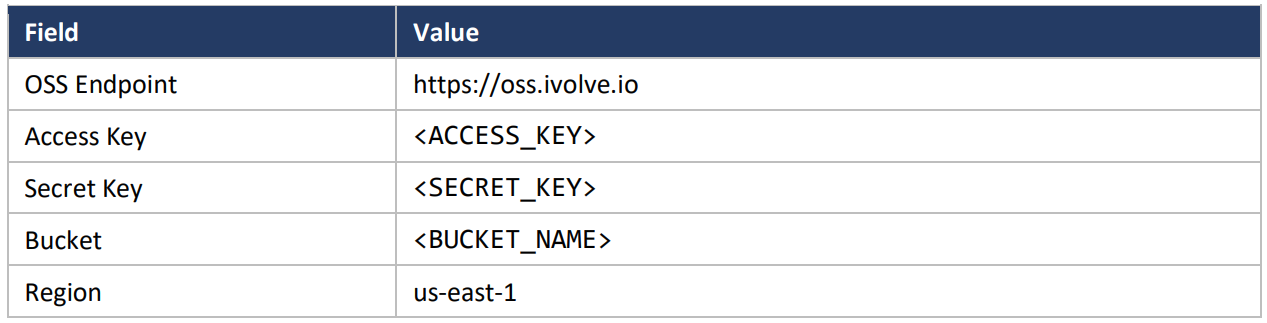
Step 1: Connection Details

Step 2: Install AWS CLI (one-time setup)

What it does: Installs the official AWS CLI v2 for Linux. Skip this step if “aws –version” already shows version 2.13 or newer. For Windows and macOS, use the installer from aws.amazon.com/cli.
Step 3: Configure a CLI Profile (one-time setup)
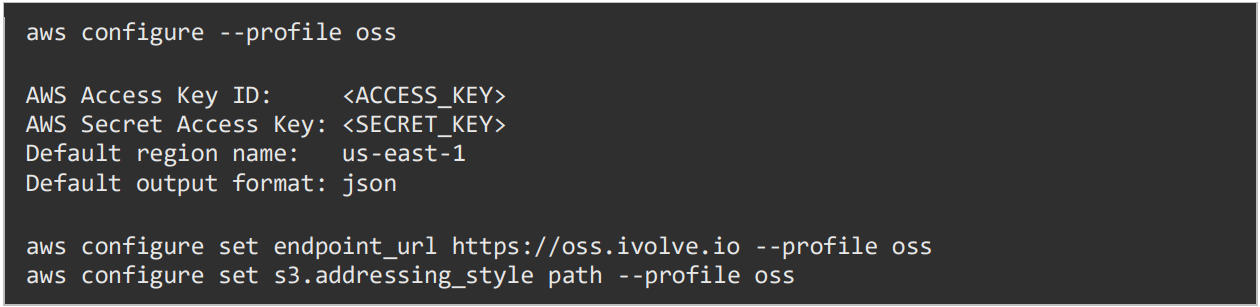
What it does: Saves the keys and the OSS endpoint in a profile named “oss”, so every command below only needs “–profile oss”. Path-style addressing is required for this storage.

Step 4: Test the Connection

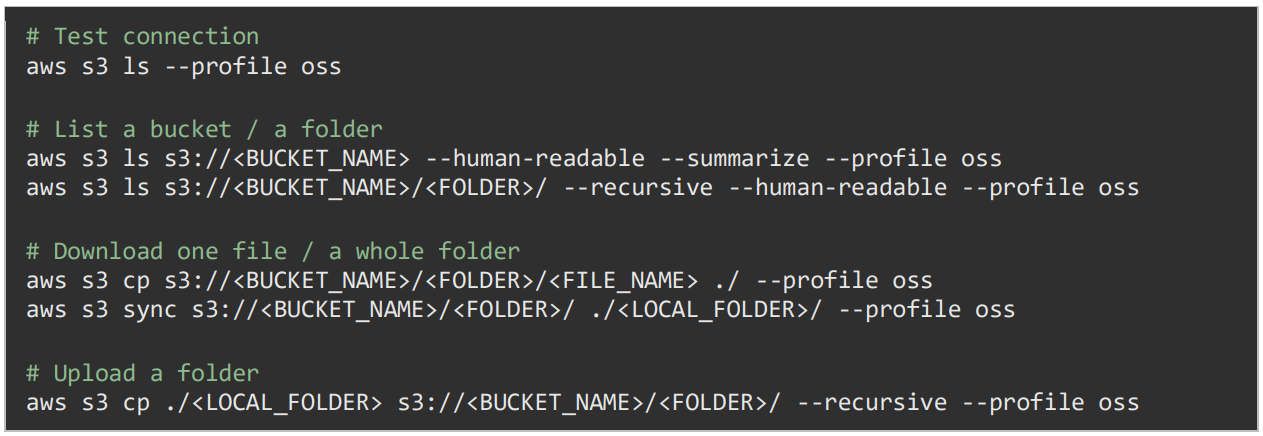
What it does: Lists the buckets these keys can access. A list of buckets (or an empty result with no error) confirms the connection and keys are working.
Step 5: List Files in a Bucket

What it does: Lists the top-level files and folders in the bucket. “–human-readable” shows sizes in KB/MB/GB, and “–summarize” adds the total number of objects and total size at the end.
Step 6: List Files Inside a Folder

What it does: Lists only the contents of one folder. Keep the trailing slash after the folder name.

What it does: Same as above, but “–recursive” also lists files inside sub-folders (entries shown as “PRE”).
Step 7: Download a File

What it does: Downloads one file into the current directory. Replace <FILE_NAME> with the exact name shown in the listing.
Step 8: Download a Whole Folder

What it does: Downloads every file in the folder into a local folder. “–recursive” is required when copying folders.

What it does: “sync” only copies files that are new or changed, which is faster when you repeat a download.
Step 9: Upload Files

What it does: Uploads a file, or a folder and everything inside it, to the chosen path in the bucket.
Step 10: Other Useful Commands
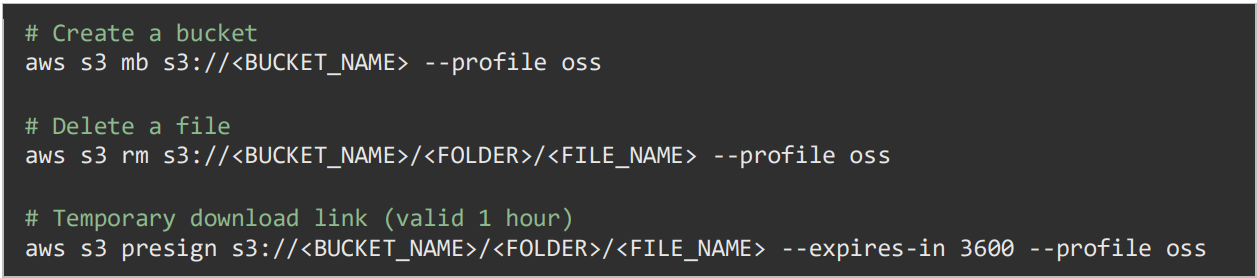
What it does: “presign” creates a time-limited link that lets someone download a file without having the keys.
Step 11: Verify a Downloaded File

What it does: Confirms the file was downloaded and shows its size.
Step 12: Troubleshooting
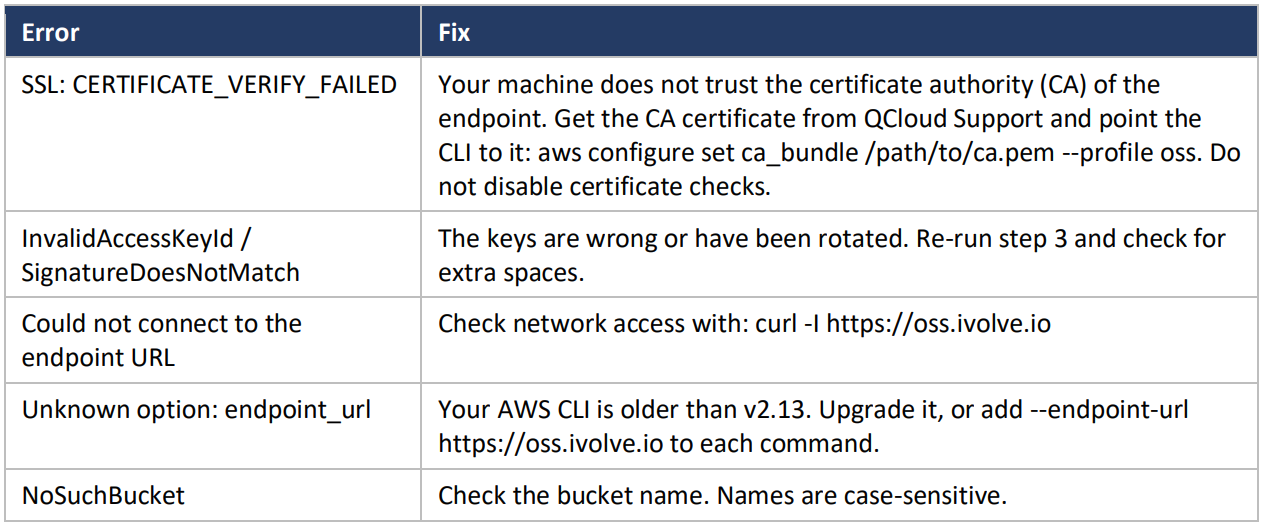 Step 13: GUI Alternative — S3 Browser
For a point-and-click way to browse, upload and download files:
1. Download S3 Browser from https://s3browser.com/download.aspx
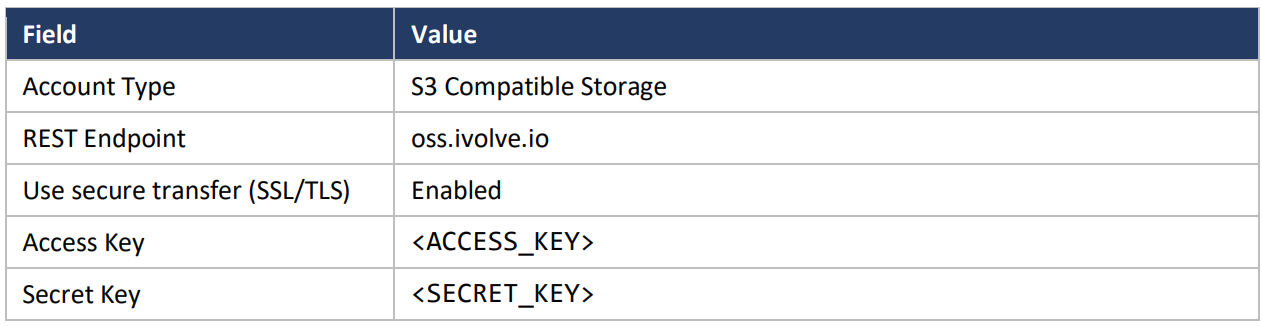
2. Open S3 Browser, then Accounts (top left) → Add New Account.
3. Enter the details below and click Add Account.
Step 14: Quick Reference