Personal Profile #
The Personal Profile section lets you manage and keep your contact and identification details accurate and up to date.
Step 1: View Your Profile
Log in, then navigate to ⋮→ Account Settings → Personal Profile. Your current profile information displays in view-only mode.
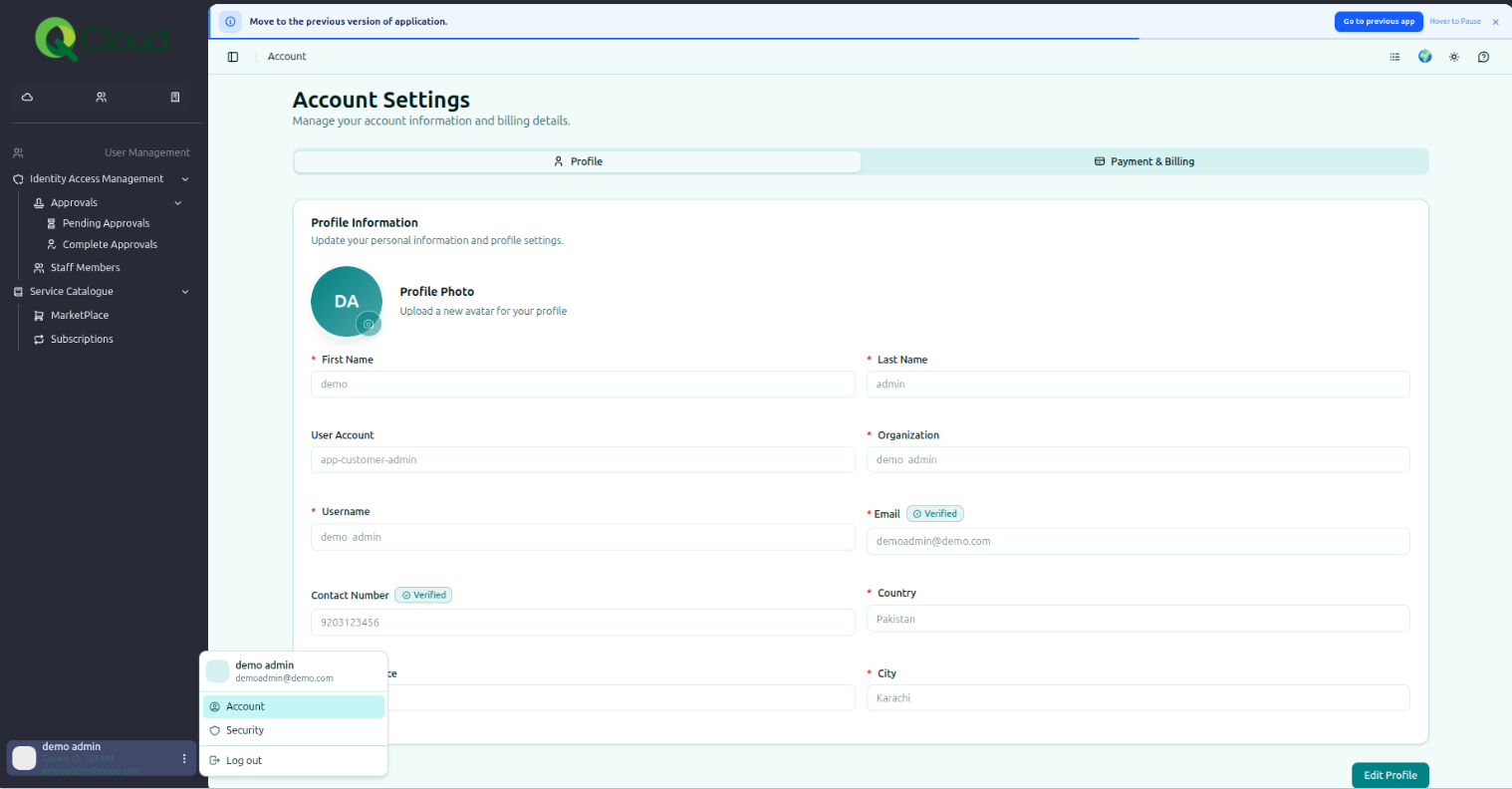
Update Profile #
-
Click Change in the QCloud footer to switch to editing mode.
-
Edit fields such as name, phone number, email, and location.
-
-
Click Edit Profile in the footer to save and submit changes.
Multi-Factor Authentication #
QCloud supports MFA via Google Authenticator or Microsoft Authenticator for an added layer of account security.
Step 1: Navigate to MFA Settings
Go to Account Settings → Multi Factor Authentication.
Step 2: Enable MFA
-
Enable the ‘Please Enable your MFA First’ toggle — this generates a QR code.
-
Scan the QR code in Google Authenticator (or Microsoft Authenticator) and input the generated token.
-
Click Submit in the QCloud footer to save.
Payment Info #
Step 1: Add a Payment Method
-
Navigate to Billing & Reports → Payment Info under Account Settings.
-
Enter Cardholder Name, Card Number, Expiry Date, and CVV Code in the Add a Card section.
-
Click Save to securely store the payment method.
Step 2: Manage Multiple Payment Methods
-
You can add multiple cards to your account.
-
Select a card and click Set as Default to prioritize it for automatic transactions.
-
Existing cards can be removed or updated, but at least one valid method must remain active if you have ongoing subscriptions.
Step 3: Enable Auto Payments
-
Go to Payment Info, choose the card to use for automatic payments.
-
Toggle Auto Payment ON and confirm.
⚠ Once enabled, QCloud automatically charges future invoices to your default payment method.
Change Password #
- Log in to your QCloud account using your credentials.
- Once logged in, navigate to User Management & Services >> Account Settings >> Change Password.
- Provide your old password for verification, then enter the new password.
- Click “Done” in the QCloud footer to save and submit the new password.