A Virtual Instance in QCloud represents a virtual machine (VM) running in your cloud environment. These instances are the fundamental compute resources that allow you to run applications, perform computations, and store data. Each virtual instance has its own CPU, memory, storage, and network resources, which can be customized according to your workload requirements.
Key Characteristics #
- Compute Power: Virtual instances provide the processing power required for running applications and services. The compute power is determined by the instance type (also known as Flavor), which defines CPU and memory.
- Scalability: Virtual instances can be scaled up or down based on your needs. You can select smaller instances for lightweight tasks or larger ones for more resource-intensive applications.
- Lifecycle Management: Virtual instances can be created, started, stopped, shelved, and deleted as needed, allowing flexibility in resource management.
- Multi-Region Support: Instances can be launched in different regions depending on your requirements, helping you optimize for performance, latency, or compliance.
With QCloud, you can easily manage your virtual instances, monitor their performance, and perform lifecycle actions like rebooting or shelving instances directly from the interface.
List Virtual Instances #
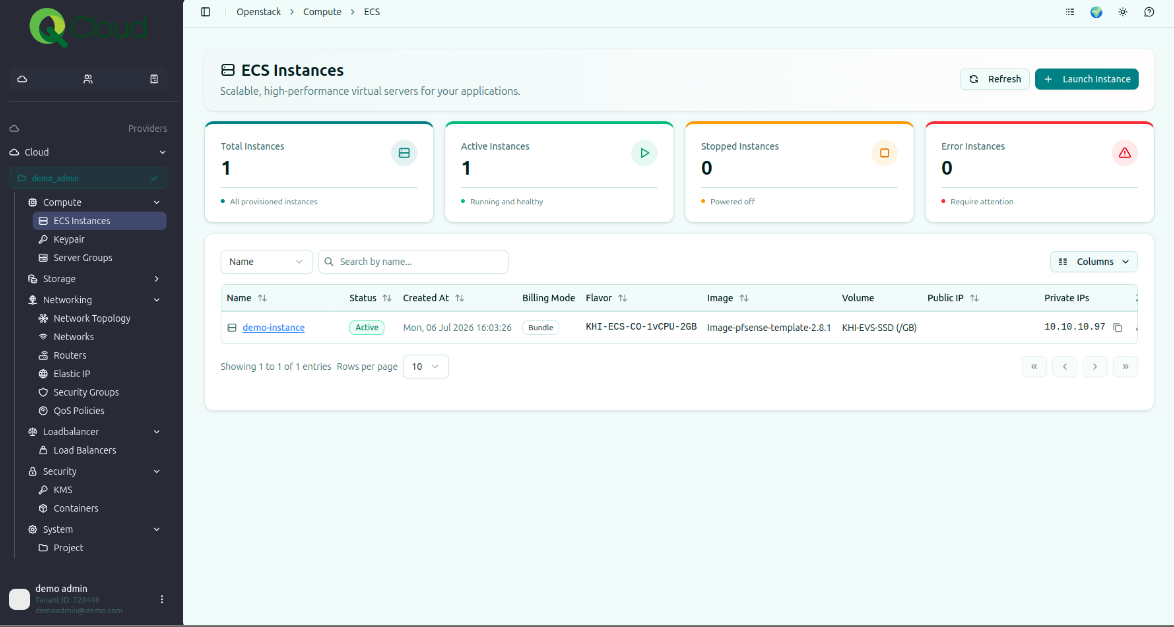
To view the list of virtual instances associated with your account, follow these steps:
- Begin by logging into the QCloud portal with your credentials. Ensure that you are logged in as a Customer-Admin or an account with sufficient privileges to view virtual instances.
- From the main menu, go to: Providers >> Provider Name >> Compute >> Virtual Instance.
- This will take you to the Virtual Instances page, where all instances are listed.
- On the Virtual Instances page, you will see a table containing details of each instance, including:
- Instance Name: The name assigned to the virtual machine.
- Created: The date the instance was launched.
- Billing Modes: The billing mode (PAYG, Reservation, Bundle) applicable on the instance.
- Image: The image (can also be an OS) used for building the instance.
- Status: The current state of the instance (active, stopped, etc.).
- Flavor: The specifications of the instance such as CPU and memory.
- IP Address: The primary IP address of the instance.
You can use this table to review and manage your virtual instances.