In QCloud, you have the ability to create staff members with different privileges assigned, allowing for tailored roles within your organization. There are three types of staff members that can be created:
- Sub Admin: Sub Admins possess comprehensive rights within QCloud, akin to those of the Customer-Admin role, but without the authority to delete the primary customer account (Customer-Admin). They have the capability to create other Sub Admins, Billing Admins, and Reporting Admins. Their responsibilities encompass all aspects of system configuration, including billing configuration, resource provisioning and life-cycle management.
- Billing Admin: Billing Admins specialize in managing billing-related functions and reports within QCloud. They have permissions to configure the billing module, which includes tasks such adding credit or debit cards for online payments, managing payments, and overseeing billing reports and transactional history. However, Billing Admins do not have the ability to create resources or other staff member accounts.
- Reporting Admin: Reporting Admins are focused on utilizing and managing reporting features within QCloud. Their role is restricted to accessing and generating reports to monitor system performance and resource usage. Reporting Admins do not have permissions to create resources or other staff member accounts, nor can they perform billing-specific configurations.
These distinct roles enable organizations to assign responsibilities effectively, ensuring that staff members have the appropriate level of access and authority needed to fulfill their duties within the QCloud environment.
List Staff Members #
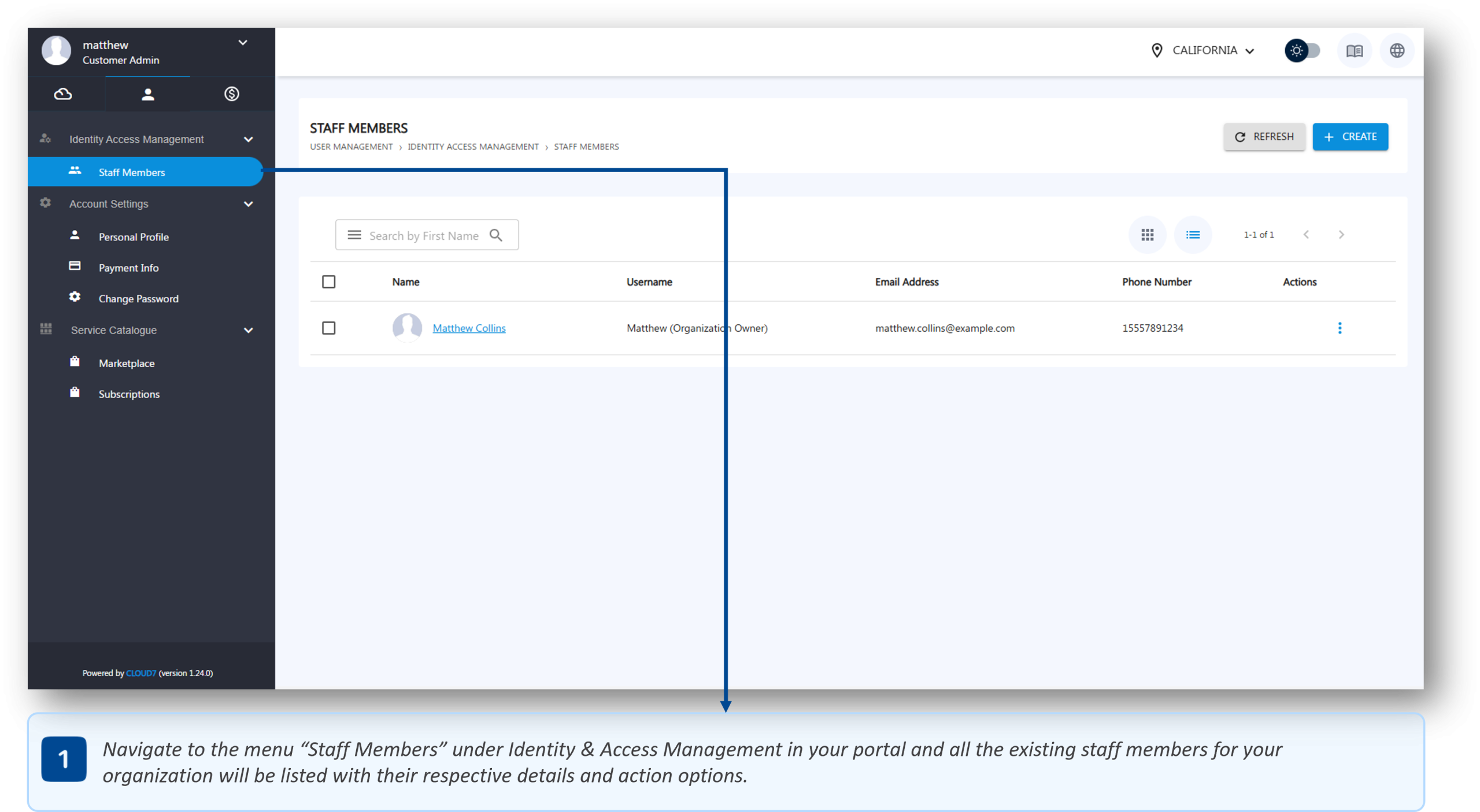
- To list Staff Members associated with your organization, log in with your account credentials (or a staff member with the necessary privileges) and navigate through the menu path: User Management >> Identity & Access Management >> Staff Members.
- QCloud will load a page with all the existing staff members with their respective details.
- By clicking on the staff member entry, a popup will open with additional information.
Add Staff Members #
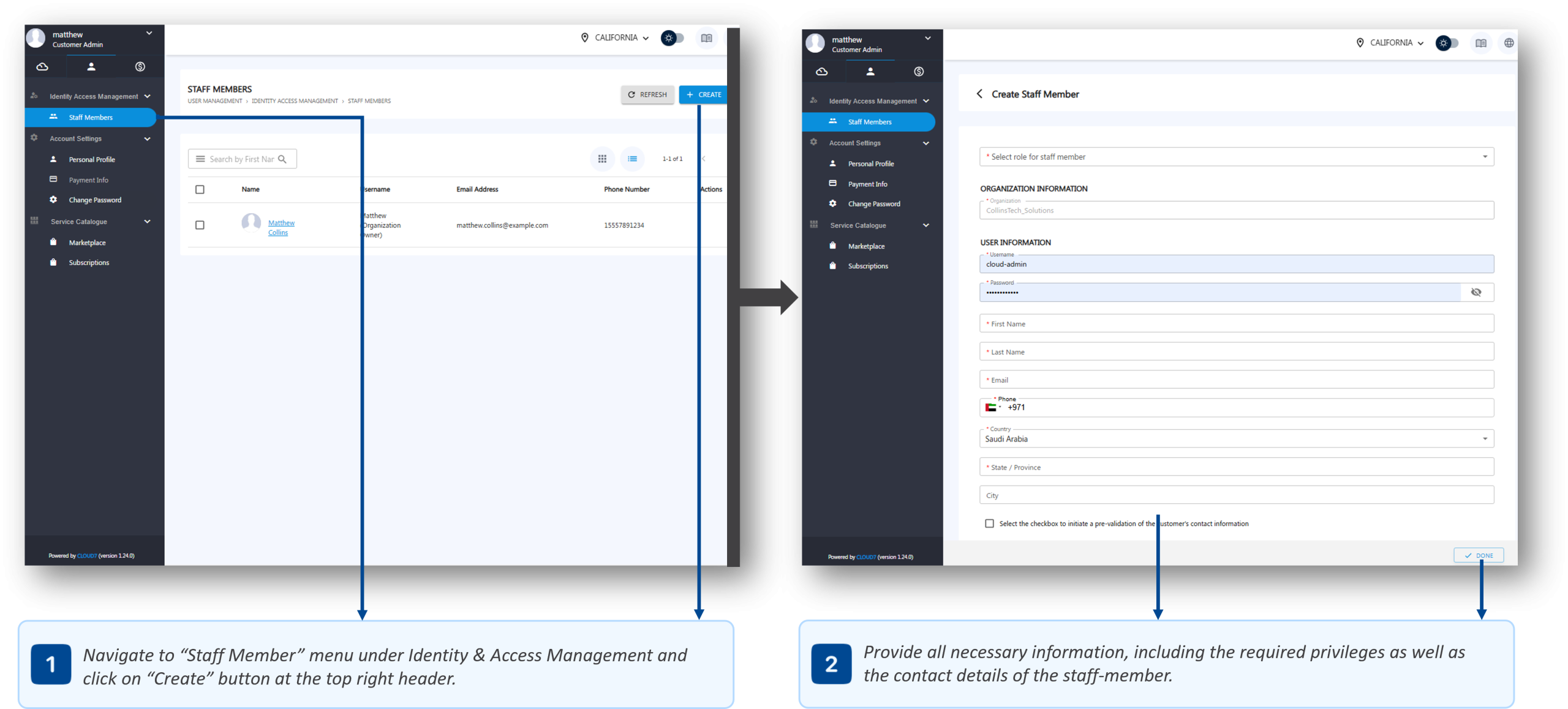
- To list Staff Members associated with your organization, log in with your account credentials (or a staff member with the necessary privileges) and navigate through the menu path: User Management >> Identity & Access Management >> Staff Members.
- QCloud will load a page with all the existing staff members with their respective details.
- At the top right corner of the QCloud header, click on “Create” button.
- In the “Select role for staff member” field, select the required role (privileges) for the staff member to be created. For details on the roles, click here.
- Under “Organization Information” section, your associated organization will be prepopulated and you cannot change it.
- Under “User Information” section, provide the following:
- In “Username” field, provide the unique username for the staff member.
- In “Password” field, specify the password for the staff member.
- In the “First Name” field, provide the first name of the staff member.
- In the “Last Name” field, provide the last name of the staff member.
- In the “Email Address” field, specify the email address.
- In “Phone” field, provide the contact number for the staff member.
- In the “Country” field, specify the location of the staff member.
- In the “State/Province” field, specify the state or the province of the staff member.
- In the “City” field, specify the city where the staff member is residing.
- Click “Done” to submit and add the staff member.
Delete Staff Members #
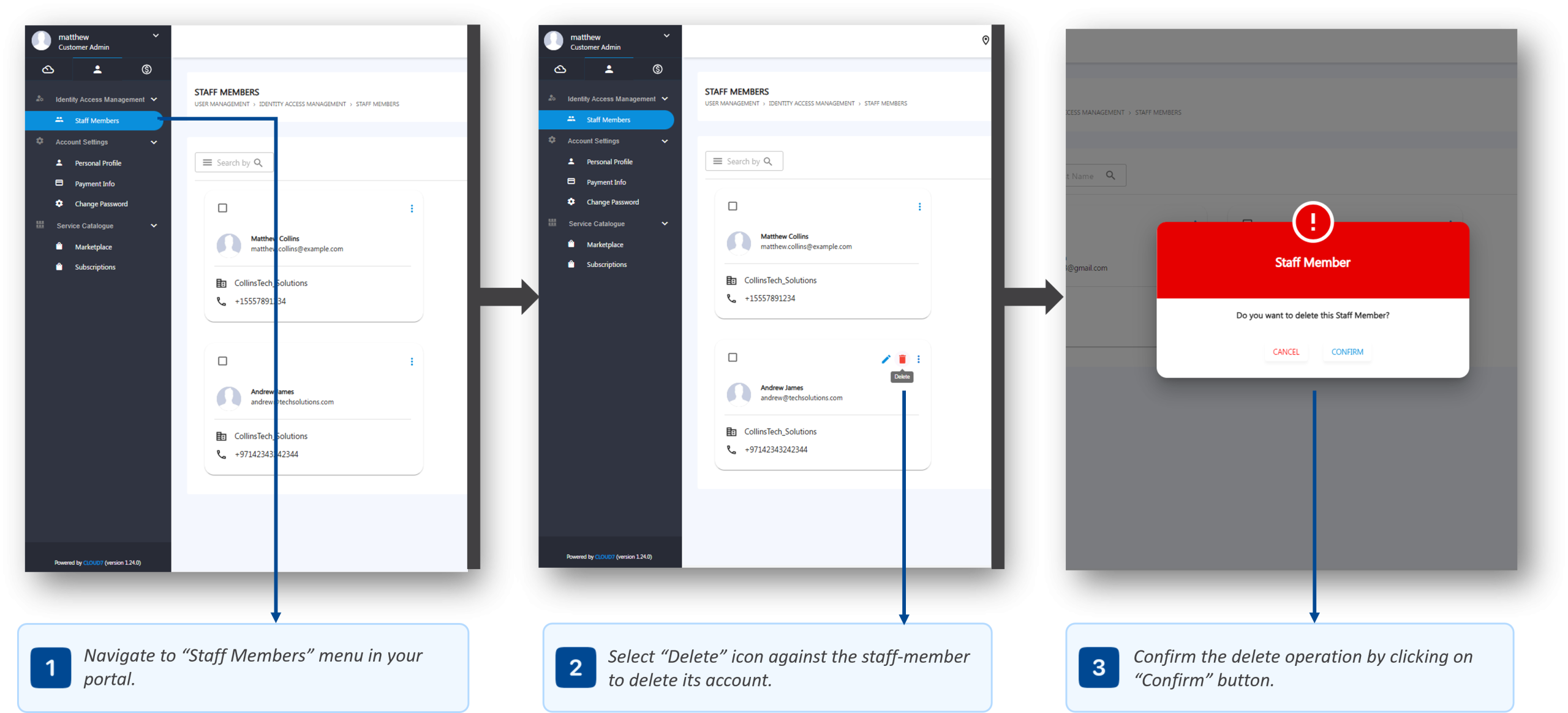
- To list Staff Members associated with your organization, log in with your account credentials (or a staff member with the necessary privileges) and navigate through the menu path: User Management >> Identity & Access Management >> Staff Members.
- QCloud will load a page with all the existing staff members with their respective details.
- Hover the cursor over the required staff member account and select the “Delete” icon.
- A popup prompt will appear to confirm the delete action. Click on “Confirm” button on the prompt to proceed with the removal of the staff member.
Activate/Deactivate Staff Members #
- To list Staff Members associated with your organization, log in with your account credentials (or a staff member with the necessary privileges) and navigate through the menu path: User Management >> Identity & Access Management >> Staff Members.
- QCloud will load a page with all the existing staff members with their respective details.
- Hover the cursor over the required staff member account and click the “More” icon to view additional options.
- Click on “Activate” or “Deactivate” to activate or deactivate the staff member account.
Enforce Password Reset #
- To list Staff Members associated with your organization, log in with your account credentials (or a staff member with the necessary privileges) and navigate through the menu path: User Management >> Identity & Access Management >> Staff Members.
- QCloud will load a page with all the existing staff members with their respective details.
- Hover the cursor over the required staff member account and click the “More” icon to view additional options.
- Select the “Reset Password” option to enforce the password reset for the staff member. The staff member will be required to reset the password upon the next successful login.