Resetting a User Password in pfSense #
Step 1: Open the User Manager
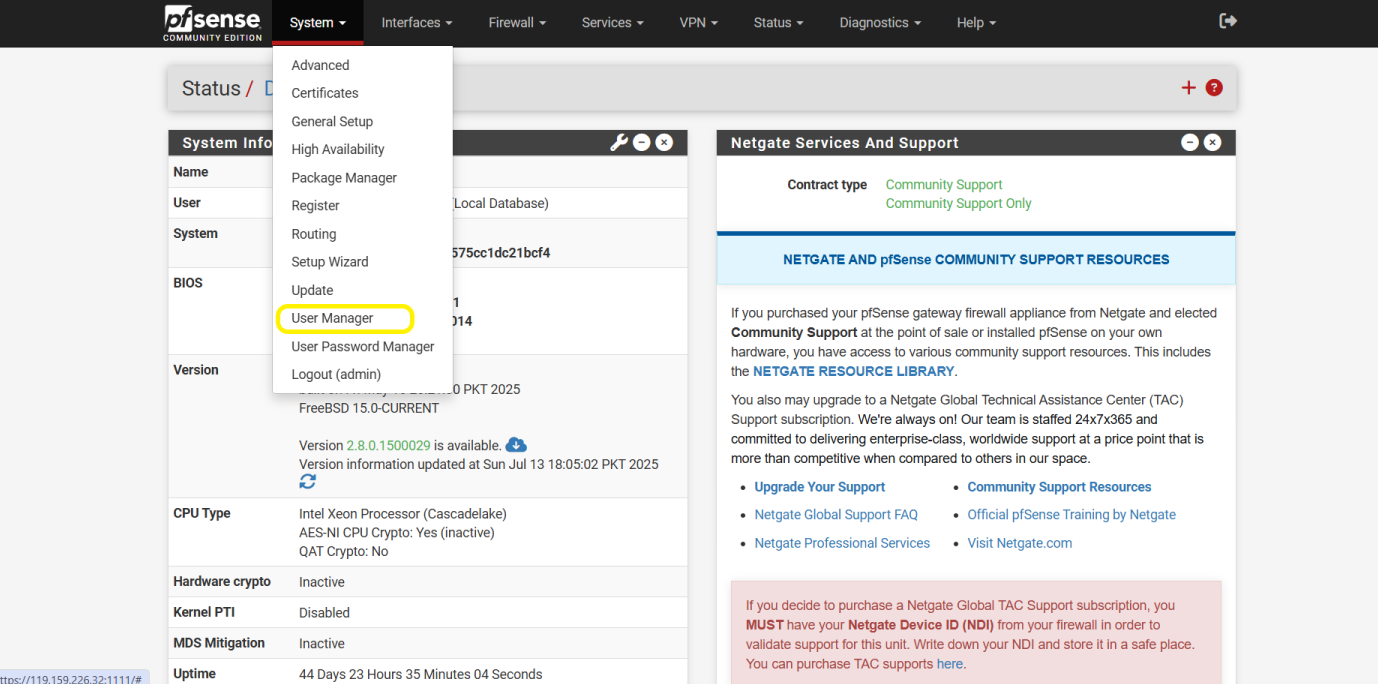
- From the pfSense Home screen, go to the top menu and click on:
System > User Manager
This will take you to the password management section where you can reset user passwords.
Step 2: Select the User to Reset Password
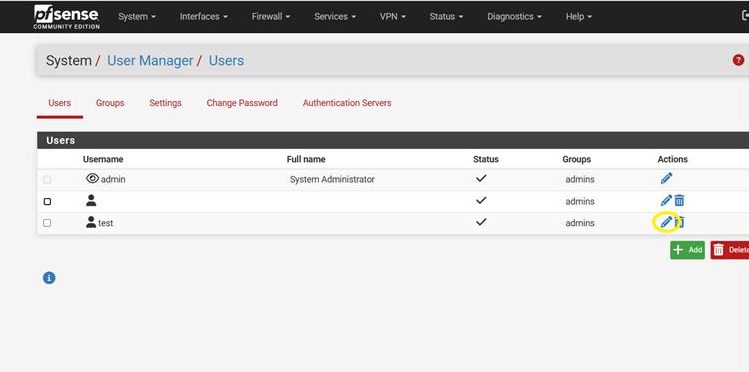
- To reset a user’s password, click the pencil icon next to the user’s name.
This icon opens the user account settings where you can update the password.
Step 3: Enter and Save the New Password
- Enter the new password in both the Password and Confirm Password fields.
- Scroll down and click the Save button at the bottom of the page.
The user’s password will now be successfully reset.
