Updating VPN Certificates in pfSense #
To update or manage VPN certificates, follow the steps below:
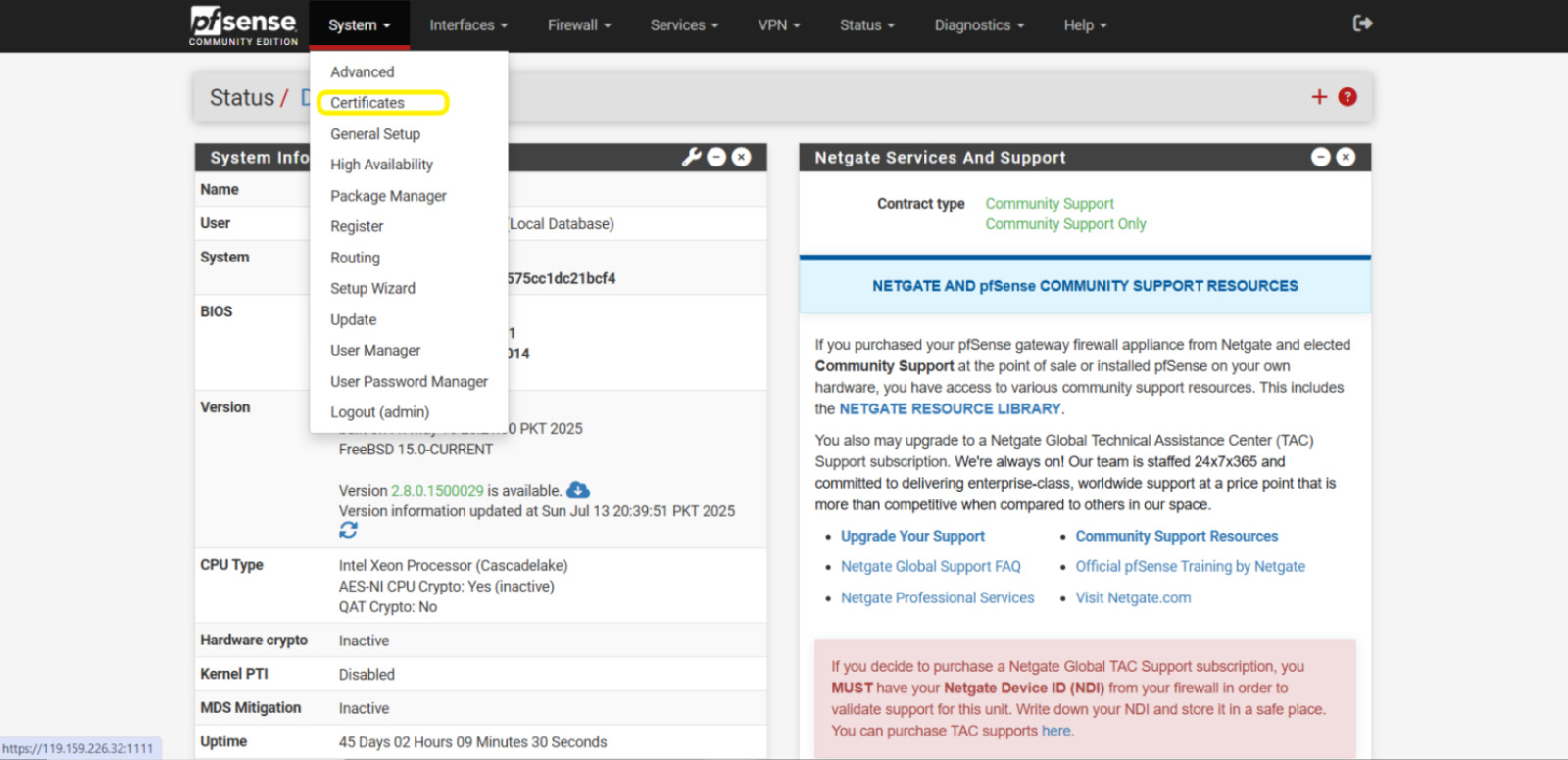
Step 1: Open the Certificates Management Page
- From the pfSense Home Screen, go to the top menu and click:
System > Certificates
This will open the Certificates management page, where you can view, add, or update VPN-related certificates.
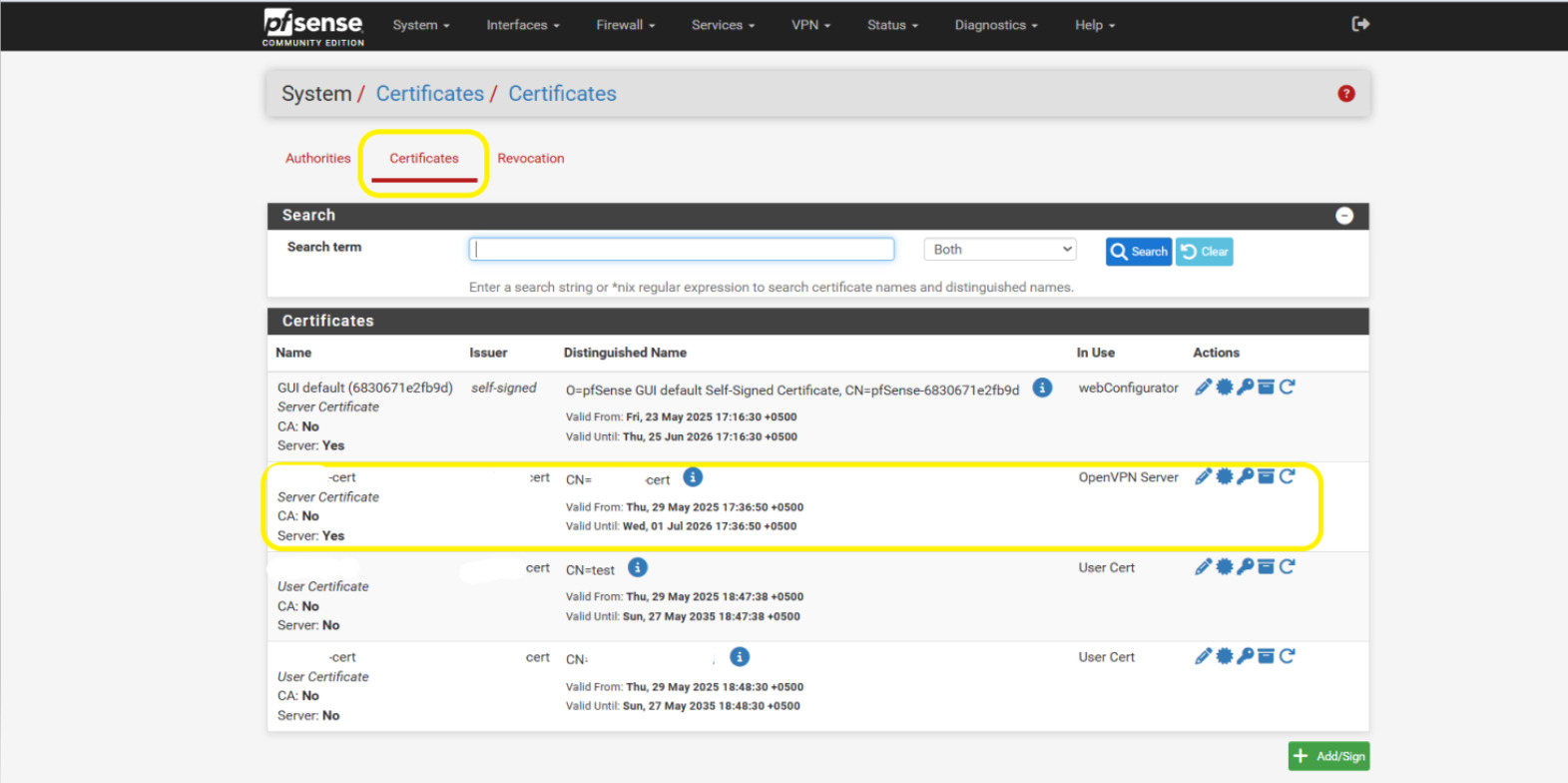
- On the Certificates page, go to the tab: System / Certificates / Certificates
- Look for the certificate that is in use — it will usually mention something like “OpenVPN Server” under the “In Use” column.
- In the Actions column for that certificate, click the loopback icon (🔁) to begin the certificate renewal process.
This will open a new page where you can renew the selected certificate.
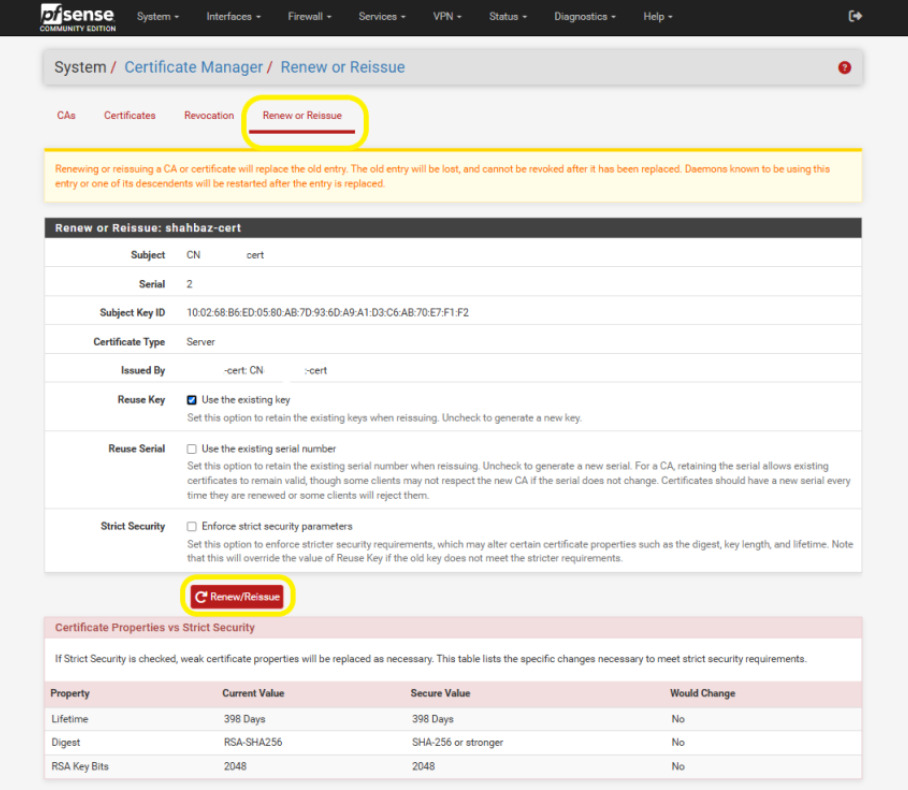
- You will now be on the System / Certificate Manager / Renew or Reissue screen.
- Simply click the Renew/Reissue button.
✅ The certificate will be updated, and all users using this VPN certificate will now be using the renewed version.